The short answer to "how does a VPN protect you" is two things. It encrypts everything between your device and a VPN server. It also swaps your IP address for the server's. As a result, the Wi-Fi network, your internet provider and the sites you visit see much less about you. It doesn't stop phishing, malware or tracking through accounts you log in to. Below you'll see who sees what with a VPN on, where the protection ends and how to check it's working.
How a VPN protects you, step by step
In short, a VPN protects you with an encrypted tunnel. It runs from your device to a server run by the VPN provider. Everything you send goes through it first. This is what happens when you open a website with the VPN on.
The key moment is step 3. The VPN server sends your request on from its own IP address. As a result, the site never sees yours. Everything before that point is encrypted, which is why the network in between learns so little.
Besides, two more parts matter. A good VPN app also sends your DNS requests through the tunnel. DNS is the lookup that turns a site name into an address. It can reveal every site you visit. Meanwhile, a kill switch blocks your internet if the tunnel drops. That way nothing slips out unprotected. If you want the full mechanics, our guide on how VPN tunneling works goes deeper.
What does a VPN protect you from? Who sees what with it on
In practice, this is how a VPN protects you. It hides your traffic from the people and companies that sit between you and the internet. They can't read it or see which sites you visit. It also hides your real IP address from the sites and apps on the other end. The table below shows each one.
| Who | Without a VPN | With a VPN |
|---|---|---|
| Someone on the same public Wi-Fi | Site names and any unencrypted app data | Encrypted traffic to a VPN server |
| The Wi-Fi owner | Sites you visit and when | That you use a VPN and how much data |
| Your internet provider or mobile carrier | Sites you visit, when and for how long | That you use a VPN and how much data |
| Websites and apps | Your IP address and rough location | The VPN server's IP and location |
| Ad trackers | Your IP plus cookies and fingerprint | Cookies and fingerprint still work |
| Torrent peers and game players | Your IP address | The VPN server's IP |
| Your VPN provider | Nothing | What your internet provider used to see, unless it keeps no logs |
Assumes the sites you visit use HTTPS. Page content is encrypted either way.
Your internet provider
Without a VPN, your internet provider can see which sites you connect to, when and for how long. HTTPS hides the pages and what you type. However, site names usually still show up in DNS lookups and connection data. With a VPN on, the provider sees one encrypted connection to a VPN server. It still knows you use a VPN and how much data you move. The same goes for your mobile carrier when you're on 4G or 5G.
Websites, apps and trackers
Sites see the VPN server's IP address instead of yours. That hides your rough location, often down to your city. It also stops sites from linking your visits by IP. But that's where it ends. Cookies, logins and browser fingerprinting still work, because they don't depend on your IP. So if you sign in to Google, Google knows it's you, VPN or not.
Torrent peers and other players
In peer-to-peer apps, everyone you share files with can see your IP address. The same goes for some voice chats and game lobbies. With a VPN, they see the server's address instead. Torrenting through a VPN is still bound by copyright law where you live. A VPN changes who sees your IP, not what's legal.
How does a VPN protect you on public Wi-Fi if HTTPS already exists?
On public Wi-Fi, a VPN adds a second layer on top of HTTPS. Most sites already use HTTPS, which encrypts the pages you load. That's why the FTC says that connecting through a public Wi-Fi network is usually safe. It's a fair point. Keep it in mind before anyone tries to scare you into buying a VPN.
Still, HTTPS leaves gaps. A VPN fills them. The table compares the two on a hotel or airport network.
| On public Wi-Fi | HTTPS alone | HTTPS plus a VPN |
|---|---|---|
| Pages, passwords and messages on HTTPS sites | Encrypted | Encrypted |
| Names of the sites you visit | Often visible | Hidden from the network |
| DNS lookups | Often sent in plain text | Sent through the tunnel |
| Apps and devices without encryption | Exposed | Encrypted |
| DNS tricks on a fake hotspot | Possible | Blocked while the VPN is on |
| Your IP address | Visible to sites | Replaced by the server's IP |
The biggest gap is the network itself. On a fake hotspot, someone who controls the Wi-Fi can answer your DNS lookups with wrong addresses and send you to a copy of a real site. HTTPS often catches this with a browser warning. Not every app checks as carefully, though. With a VPN, your lookups travel through the tunnel, where the network can't tamper with them. Some apps also still send data without encryption. A VPN covers them too.
One practical tip. Hotel and airport networks often show a sign-in page first. So connect to the Wi-Fi, get through that page and then turn the VPN on. If the VPN connects before you sign in, the sign-in page may not load. In that case, turn the VPN off, sign in and turn it back on.
How does a VPN protect you from hackers?
A VPN protects you from hackers who attack your connection, not your device or your accounts. It's a narrow job. Still, it's a real one.
Here's what it stops:
- Snooping and tampering on open or fake Wi-Fi. Someone on the same café network sees only encrypted data going to a VPN server. They can't change it on the way either.
- Attacks on your home connection. A DDoS attack floods your IP address with junk traffic. It's a known problem in online games, as our guide on a VPN for gaming explains. With a VPN, attackers see the server's IP, not yours.
What a VPN will not protect you from
Many common attacks don't touch your connection at all. They start with a fake email, a bad download or a password that leaked somewhere else. A VPN does nothing about any of these.
- Snooping on open Wi-Fi
- DNS tricks on fake hotspots
- DDoS attacks on your home IP
- Finding your city from your IP
- Phishing emails and fake sites
- Malware and bad downloads
- Leaked or reused passwords
- A device that's already hacked
- Tracking through accounts and cookies
So treat a VPN as one layer. For the rest, use a password manager, turn on two-factor sign-in and keep your system and apps updated. That combination covers the attacks a VPN can't.
What VPN protection covers on your devices
VPN protection covers whatever goes through the tunnel. That depends on how you set it up. A VPN app on your phone or computer covers every app on that device, not just the browser. A browser extension, by contrast, covers only the browser.
Split tunneling changes the picture on purpose. It lets you send some apps outside the tunnel, for example a banking app that blocks VPN servers. Those apps then use your normal connection. As a result, the VPN no longer protects them. Keep that list short.
Also, some devices can't run VPN apps at all, such as smart TVs and game consoles. For those, a VPN on your router covers the whole home network. Our guide on setting up a VPN shows both routes.
Do VPNs really work? Where the protection ends
Yes, VPNs really work for what they're built to do. They hide your traffic from the network and your IP from sites. But four limits catch people out.
First, a VPN doesn't make you anonymous. As the EFF puts it, "A VPN is not a tool for anonymity." It hides your connection, not your identity.
Second, your trust moves to the VPN provider. Whatever your internet provider used to see, the VPN service can now see instead. That's why the provider's logging matters more than its marketing. Look for three things:
- A no-log policy checked by an independent audit, not just promised.
- Servers that run in RAM only. A reboot wipes them.
- A sign-up that asks for as little as possible.
Third, VPN security depends on the protocol and the app. Modern protocols such as WireGuard and OpenVPN use strong, well-studied encryption. Old ones such as PPTP don't. Avoid any service that still offers it as a main option. Our guide to VPN protocols compares them.
Finally, leaks undo the protection. If DNS requests go around the tunnel or the connection drops without a kill switch, part of your traffic goes out unprotected. You won't notice it unless you test.
If you're still deciding whether you need one at all, our guide on whether a VPN is worth it helps you weigh it up.
How to check that your VPN is protecting you
Knowing how VPN protects you on paper isn't the same as seeing it work. Testing takes about three minutes. A browser is all you need. Do it once when you set up a VPN, then again after big app or system updates.
Start with your IP. Open an IP lookup site with the VPN off and note the address and city. Then turn the VPN on and reload. You should see a different IP and the server's location. Good IP check sites also test WebRTC, a browser feature that can reveal your real IP even with a VPN on.
Next, run a DNS leak test. If it lists your internet provider's servers while the VPN is on, your lookups are leaking. Our guide on how to check a VPN for DNS leaks walks through it.
Finally, test the kill switch. Start a video, then turn Wi-Fi off and back on. When Wi-Fi returns, nothing should load until the VPN reconnects. If you're not sure what the setting does, read our explainer on what a VPN kill switch is.
What Atomic VPN does at each step
Atomic VPN connects over WireGuard by default, which encrypts traffic with ChaCha20-Poly1305. OpenVPN and IKEv2/IPSec are also available. Both use AES-256. The Windows, macOS and Android apps include a kill switch, split tunneling and DNS leak protection. On Windows and macOS, the app can also connect on its own when you join an unfamiliar Wi-Fi network. When your phone or laptop switches networks, it reconnects in about 0.2 seconds. One plan covers 5 devices at once. A router setup protects the rest of your home network without using a slot.
On the trust side, the no-log policy has passed an independent audit. Atomic VPN doesn't keep connection timestamps, assigned IPs, DNS queries or browsing history. The servers run in RAM only. A reboot wipes them. Sign-up asks for an email and a payment method. You can also pay with crypto.
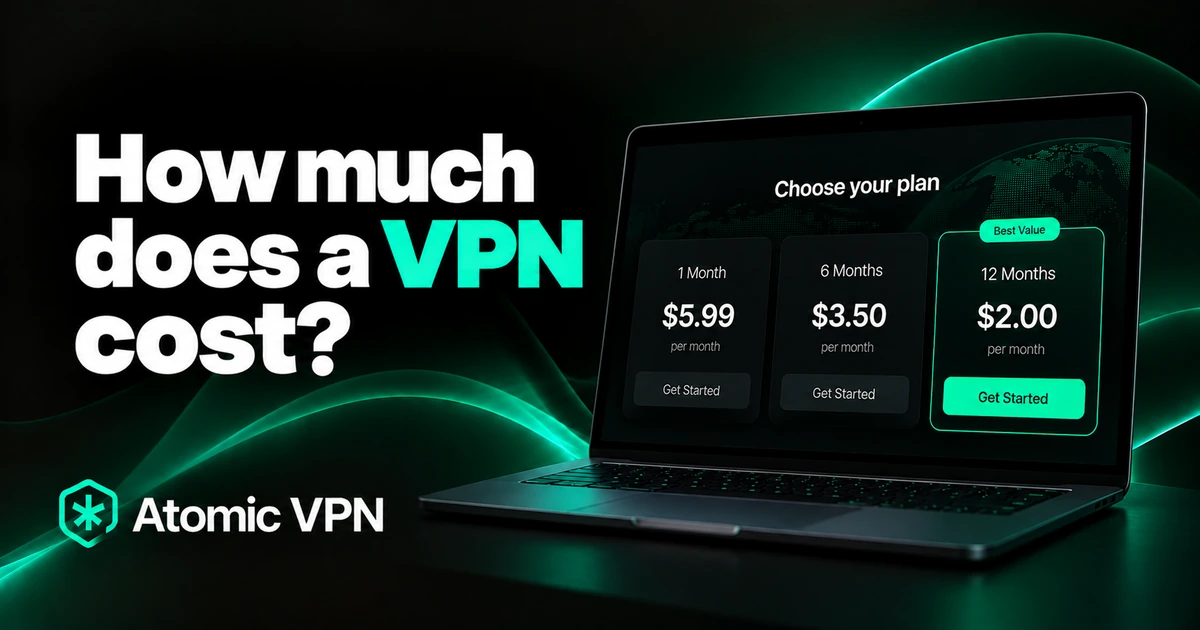
It costs $2 a month on the yearly plan, billed $24 once a year. Month to month, it's $5.99. Every plan has the same features. The iOS app is coming soon.
Turn it on before you join the next public Wi-Fi, then run the three-minute check above.
$2 a month on the yearly plan, billed $24 once a year. WireGuard, a kill switch, DNS leak protection and an audited no-log policy.