A travel eSIM is a digital SIM you buy online and install on your phone before a trip. Instead of paying your home carrier's roaming fees or hunting for a SIM shop at the airport, you scan a QR code, and your phone gets local or regional mobile data in the country you land in.
It's the easiest way to have working data the minute you arrive. It also changes a few things about security, so this guide covers both: how to pick and install one, and what to do to keep your data private once you're connected.
How a travel eSIM works
An eSIM is a chip built into your phone that stores one or more SIM profiles. A physical SIM is a card you slide in. An eSIM profile is a file you download. The profile holds the same kind of identity a SIM card does and tells a mobile network that your phone may use it.
For a trip, the flow looks like this:
Most phones can store several eSIM profiles but run only one or two at a time (a physical SIM plus one eSIM, or two eSIMs, depending on the model).
eSIM vs physical SIM vs roaming
This is the decision most travelers actually face.
Rules of thumb:
- A weekend trip, and your carrier's roaming is cheap: roaming is fine.
- A week or more, or several countries: a travel eSIM is usually the best balance.
- A long stay, heavy data use: a local physical SIM or eSIM from a local carrier.
The two details people miss: a data-only eSIM can't receive SMS verification codes sent to your home number unless your home line is also active, and the eSIM won't work on a phone that's still locked to your home carrier.
Is your phone compatible?
You need two things: a phone that supports eSIM and one that's unlocked.
- iPhone: eSIM is supported on the iPhone XS, XR and later. US models of iPhone 14 and later have no physical SIM tray at all and use eSIM only.
- Android: Google Pixel and many recent Samsung, Motorola and other flagship models support eSIM. Support depends on the model and the region where it was sold, so check the maker's list.
- Unlocked: if you bought the phone on a carrier plan, it may be locked until it's paid off. Ask your carrier to unlock it before you travel.
- Check the phone itself: look for an "EID" number in the phone's settings or dial *#06#. A phone that shows an EID supports eSIM.
How to choose a travel eSIM
You'll see many providers, and plans look similar. These are the points that decide whether you'll be happy with one.
- Coverage. A country plan, a regional plan (Europe, Asia) or a global plan. Check every country on your route, including transit.
- Data amount and duration. Plans are sold as "X GB for Y days". Add up what you use: maps and messaging use little; video calls and streaming use a lot.
- Speed and network. Check which local networks the eSIM uses and whether 5G is included. A cheap plan on a slow network is a poor deal.
- Hotspot and tethering. Some plans don't allow sharing data with your laptop. If you work on the road, check.
- Phone number. Most travel eSIMs have none. If you need a local number for rides, deliveries or bookings, look for a plan that includes one.
- Top-up and expiry. Can you add data later without a new install? When does the validity period start: at install or at first connection?
- Refunds and support. What happens if the eSIM won't activate? Is there support in your language?
- Price per GB, with everything included. Compare the full cost, not the headline price.
We don't rank providers here, because the best plan depends on your route and data use. Use the criteria, then read the terms of the plan you pick.
How to install a travel eSIM
Do this at home, on a Wi-Fi network you trust, at least a day before you fly.
On iPhone
- Open the QR code from your provider's email or app.
- Go to Settings > Cellular > Add eSIM (on some versions: Settings > Mobile Data > Add eSIM).
- Choose Use QR Code and scan it, or follow the provider's install link.
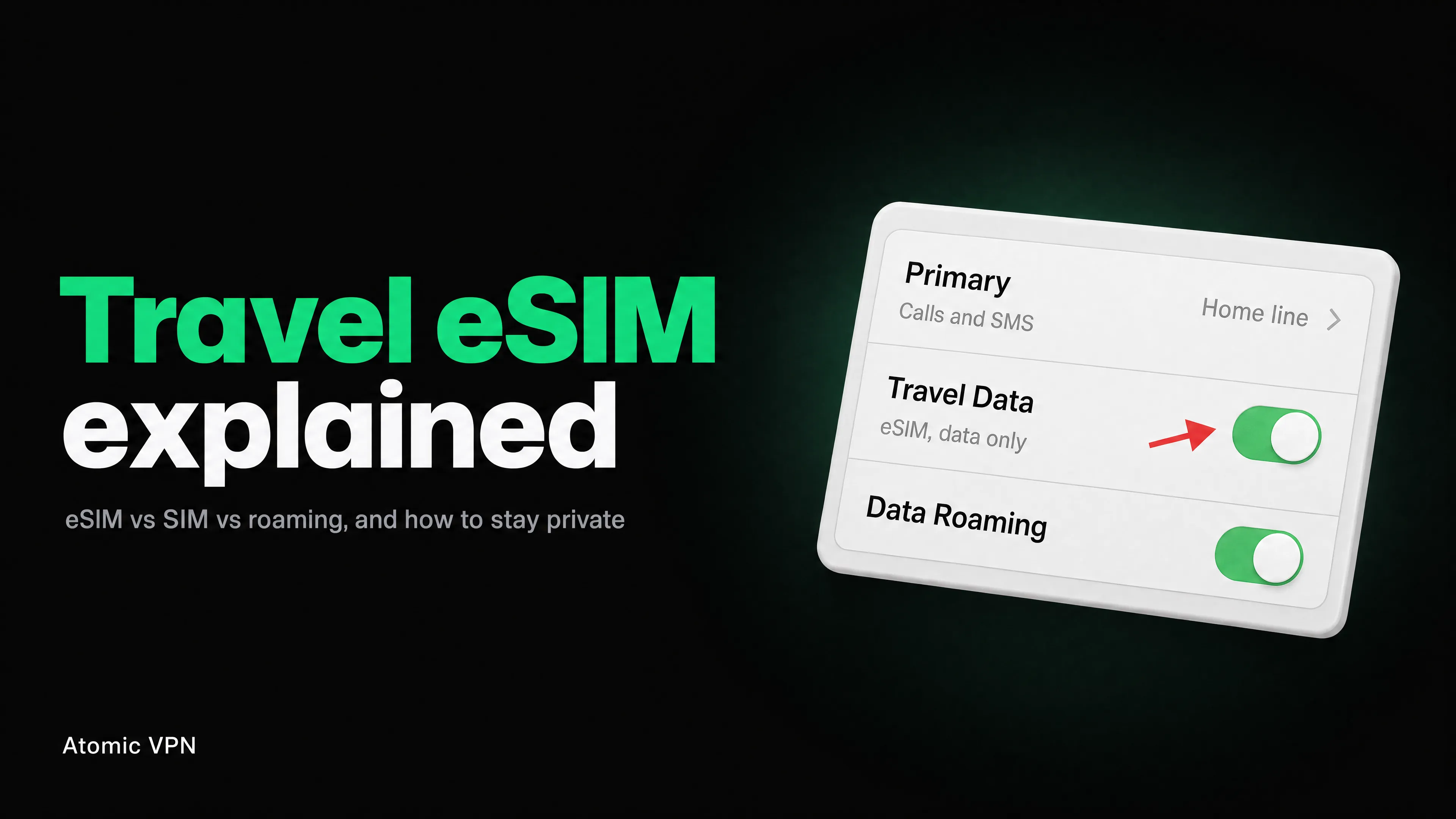
- Give the line a label, such as "Travel Data".
- Under Default Voice Line, keep your home line.
- Under Cellular Data, choose your travel line when you arrive. Until then, leave your home line on or switch the travel line off.
- For the line you don't use abroad, turn off Data Roaming (Settings > Cellular > your home line), so you don't get charged by accident.
On Android
- Open Settings > Network & internet > SIMs (the menu name varies by phone).
- Tap Add eSIM or Download a SIM instead.
- Scan the QR code from your provider.
- Name the eSIM and set it as the default for mobile data when you land.
- Keep your home SIM active for calls and texts, and turn off data roaming on it.
When you land
- Turn on the eSIM line and set it for mobile data.
- Switch off data roaming on your home line.
- Wait a minute for the network to register. If it doesn't, toggle airplane mode on and off and restart the phone.
- Test with a map or a message before you leave the terminal.
Keeping your data private on a travel eSIM
Switching from public Wi-Fi to mobile data is a good security step: fake hotspots and shared hotel networks are out of the picture. But mobile data has its own visibility.
- The eSIM provider and the mobile network can see metadata, such as which domains you connect to, when and how much data you use. The contents of HTTPS pages and encrypted messages stay hidden, but destinations don't.
- Some providers route traffic through other countries, so your traffic may appear to come from a different place than you expect.
- Your home number is still a target. SIM-swap fraud works on eSIM lines as well. Add a PIN or port-out lock with your home carrier, and use an authenticator app instead of SMS codes where you can.
- Public Wi-Fi is still around. At some point you'll use a hotel, airport or café network to save data. See our guide to hotel Wi-Fi for what changes there.
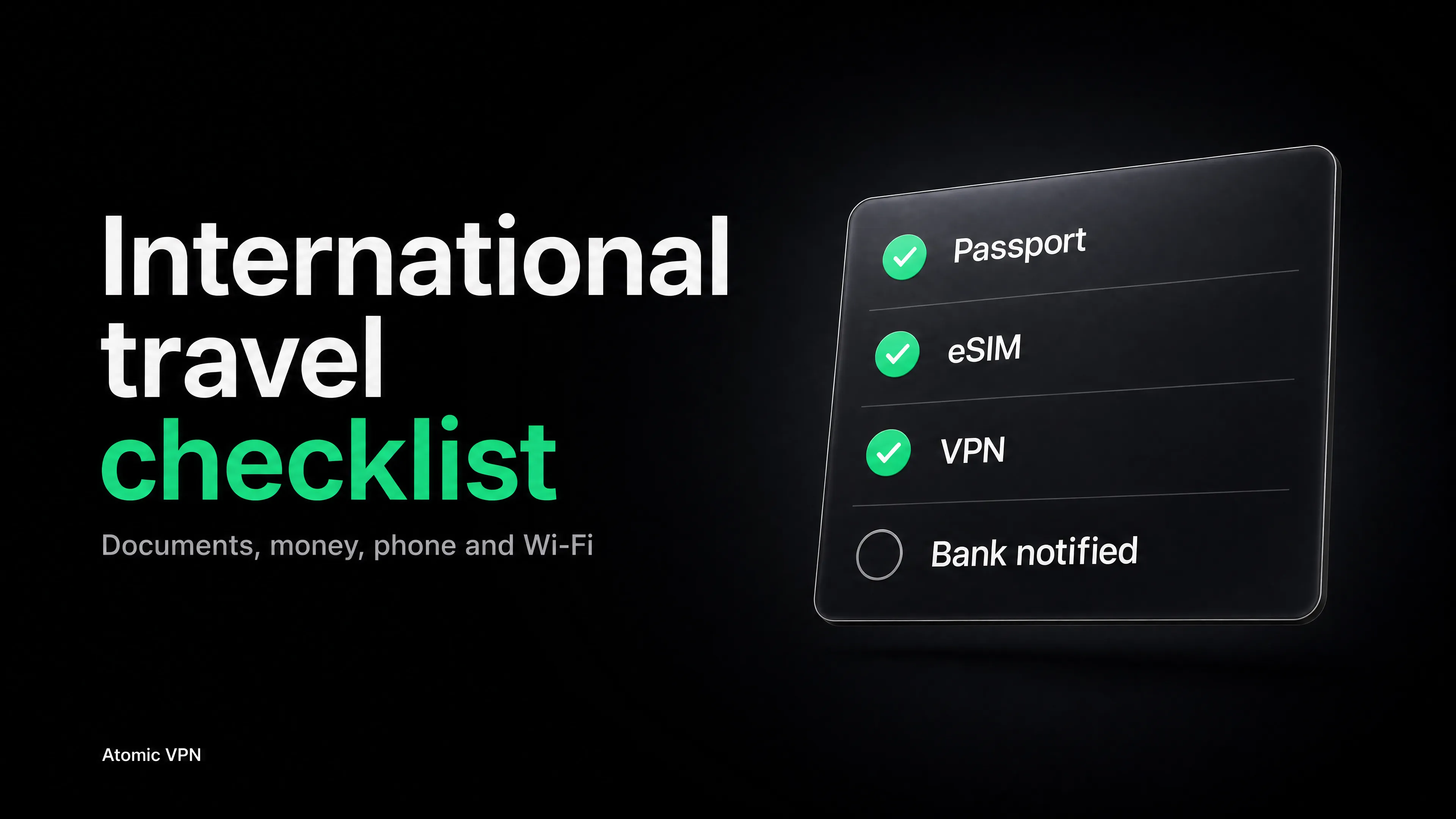
A VPN adds one layer to all of that. It encrypts your traffic before it leaves the phone, so the Wi-Fi owner, the eSIM provider and the mobile network see only a connection to a VPN server. Atomic VPN covers 5 devices on one account, with servers in 88+ countries, and apps for Windows, macOS, iOS and Android. Install and test it at home next to your eSIM, as in the travel checklist. The VPN for travel page has the trip-specific details.
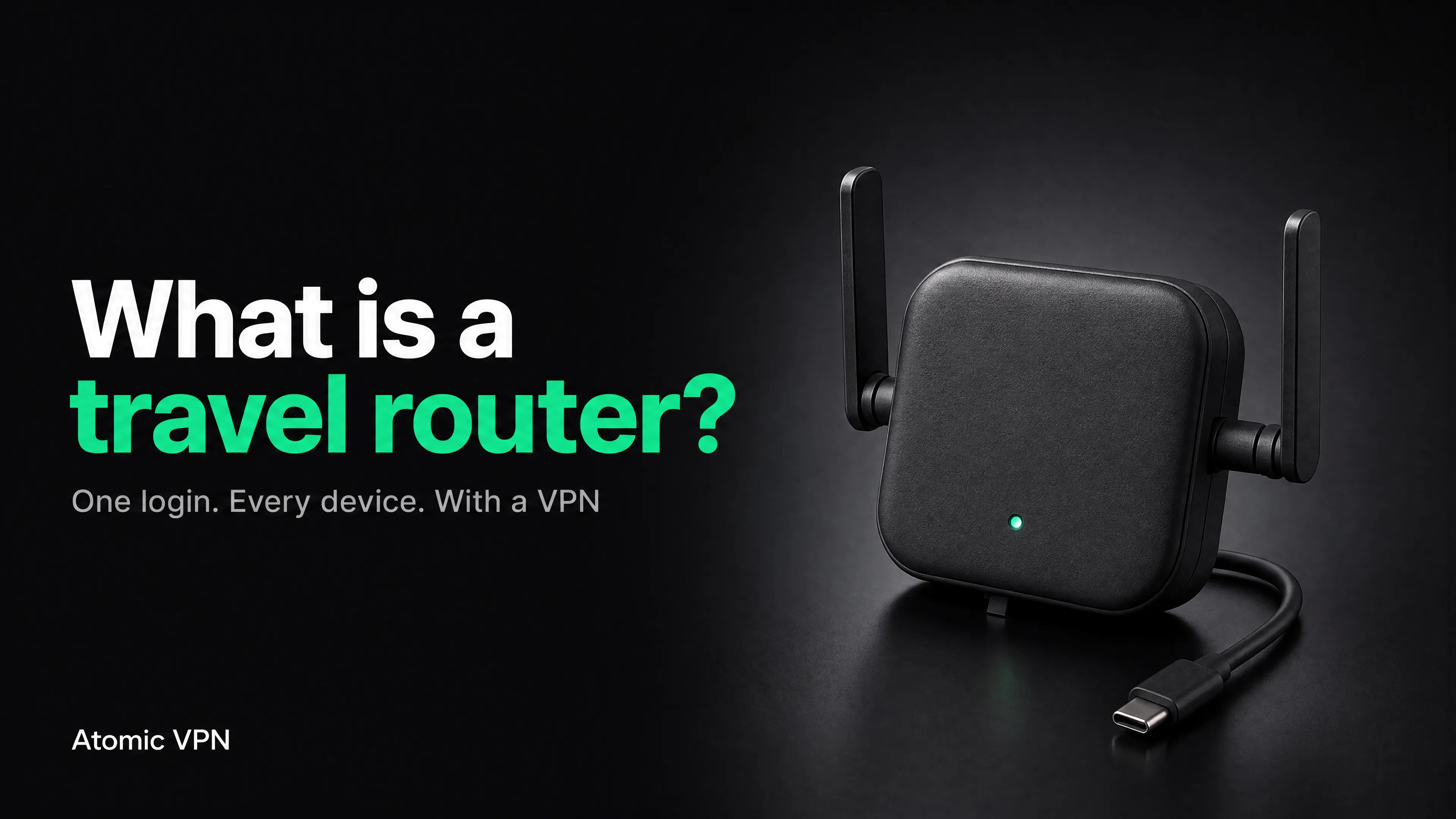
If you travel with a laptop, a console or a tablet and want one connection for all of them, the travel router guide shows how to use your eSIM as the internet source with a VPN on the router.
Common problems and fixes
The QR code won't scan or says "invalid". Most eSIM QR codes work once. If you installed and deleted the profile, you may need a new code. Contact the provider before you leave.
You installed it, but there's no data. Check that the travel line is selected for cellular data and that Data Roaming is on for the travel line (many travel eSIMs require it; this isn't a charge from your home carrier). Then toggle airplane mode.
You're being charged by your home carrier. The home line's data roaming is on, or the phone fell back to it. Turn off data roaming for the home line.
SMS codes don't arrive. A data-only eSIM has no number. Keep your home line active for SMS, or switch to an authenticator app.
Hotspot doesn't work. The plan may not allow tethering. Check the terms.
The eSIM expires too early. Some plans start counting at install, not at first use. Install close to the trip, not weeks before.
Your phone is locked to a carrier. You'll get "no eSIM" or an activation error. Ask the carrier to unlock it before you leave.
You changed phones. Most travel eSIMs can't be moved to a new phone. Check the provider's policy before you replace a device in the middle of a trip.
After the trip
- Delete the eSIM profile (Settings > Cellular > the eSIM > Delete eSIM on iPhone), or leave it off if you plan to top up later.
- Switch your cellular data back to your home line and turn off roaming.
- Check your home carrier's bill for stray roaming charges.
FAQ
What is a travel eSIM?
A digital SIM that you buy online and install on your phone with a QR code, to get mobile data in another country without a physical SIM or your home carrier's roaming fees.
How does an eSIM work?
The profile is stored in a chip in your phone. It identifies your phone to a mobile network, the same job as a physical SIM, but you download it instead of inserting a card.
Is eSIM better than a physical SIM for travel?
For most trips, yes. It's quicker to set up, and you keep your home SIM. A physical local SIM is better for a long stay with high data use or when you need a local number.
Is an eSIM cheaper than roaming?
Usually, especially for trips longer than a few days. Check your own carrier's price, as some plans include roaming in certain countries.
Do I need to install the eSIM before I travel?
Yes. Install at home on a trusted Wi-Fi network, then activate it when you land. You need an internet connection to download the profile.
Does a travel eSIM come with a phone number?
Most don't. They're data-only. Keep your home line active for calls and SMS, or choose a plan that includes a local number.
Will I still get SMS codes from my bank with a travel eSIM?
Only if your home line is active and can receive SMS abroad. The safer fix is an authenticator app, set up before you leave.
Which phones support eSIM?
iPhone XS, XR and later, most recent Google Pixel and Samsung flagships, and many other Android models. Check the maker's list, and make sure your phone is unlocked.
Can I use a travel eSIM for hotspot or tethering?
Only if the plan allows it. Check the terms before you buy, particularly if you work from a laptop.
Is a travel eSIM safe?
It's safer than open public Wi-Fi, but the provider and the network can still see which sites you connect to. A VPN encrypts that traffic.
Do I need a VPN with an eSIM?
You don't need one to use mobile data, but it hides your destinations from the provider and the network, and it protects you when you switch to hotel or airport Wi-Fi to save data.
Can I use two eSIMs at the same time?
Many phones support one physical SIM plus one eSIM, or two eSIMs active at once. Check your model's dual-SIM options.
What happens to my eSIM if I switch phones?
Most travel eSIMs are tied to one device. Don't change phones mid-trip, and check the provider's rules for transfers.
What should I do if my phone is lost abroad?
Lock it with Find My or Find Hub, report the eSIM line to the provider, ask your home carrier to block the SIM, and change your account passwords.