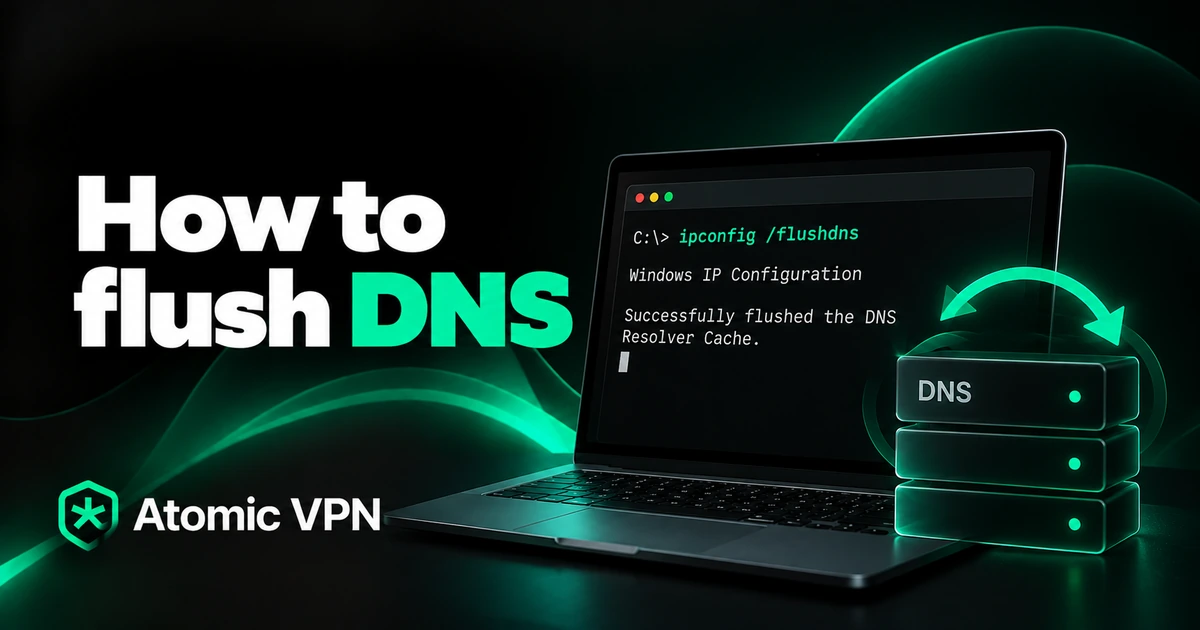
To flush DNS on Windows, open Command Prompt and run ipconfig /flushdns. On a Mac, you run two Terminal commands. Linux needs just one. Browsers and phones have their own quick steps. All the commands are in the cheat sheet below, followed by step-by-step guides, ways to check that it worked and fixes for common errors.
What is DNS cache?
In short, DNS cache is a list your device keeps of the websites it has looked up recently and their IP addresses. DNS (Domain Name System) works like a phone book. It turns a name such as example.com into the number your device needs to connect.
Looking up every name from scratch would slow you down. That's why your device saves each answer for a while. How long depends on the TTL (time to live) that the site's owner sets, which can be a few minutes or a full day. Your browser, your operating system and your router can each keep their own copy.
What does flushing DNS do?
When you flush the DNS cache, your device deletes those saved answers. As a result, the next time you open a site, your device asks a DNS server again and gets the current address. Nothing else changes. Your files, passwords and browser history stay where they are.
A DNS flush helps in a few common cases:
- A site moved to a new server and you still land on the old one.
- You see errors like DNS_PROBE_FINISHED_NXDOMAIN or "server IP address could not be found" while other devices load the site fine.
- You changed your DNS server, for example to 1.1.1.1 or 8.8.8.8.
- You just connected or disconnected a VPN and some sites behave oddly.
Your device also clears this cache when it restarts. A flush, however, does the same thing without rebooting.
How to flush DNS on Windows 11 and 10
Windows needs just one command. It works the same on Windows 11 and Windows 10.
- Press the Windows key, type cmd and open Command Prompt. If you get an error later, right-click it and choose Run as administrator.
- Type ipconfig /flushdns and press Enter.
- Look for the message "Successfully flushed the DNS Resolver Cache."
According to Microsoft's ipconfig reference, the command "flushes and resets the contents of the DNS client resolver cache". If you prefer PowerShell, Clear-DnsClientCache does the same job without any message.
To see what was in the cache before you flush it, run ipconfig /displaydns. It lists every site name your PC has resolved lately.
How to flush DNS on Mac
On a Mac, the job takes two Terminal commands. Both work on all recent macOS versions.
- Open Terminal from Applications > Utilities or find it with Spotlight.
- Run sudo dscacheutil -flushcache and press Enter.
- Run sudo killall -HUP mDNSResponder and press Enter.
- Enter your Mac password when asked. The characters won't show as you type.
Also, don't expect a confirmation. Both commands finish silently. That's normal. The first clears the cache. The second restarts the macOS service that handles DNS lookups. That way it starts fresh. Some guides still list different commands for older versions such as Yosemite. You only need them on a Mac that hasn't been updated in more than ten years.
How to flush DNS on Linux
On most current Linux systems, sudo resolvectl flush-caches clears the DNS cache. That covers Ubuntu, Fedora and other distributions that use systemd-resolved.
Then, to check that it worked, run resolvectl statistics. "Current Cache Size" should show 0 right after the flush.
Some systems use a different cache service:
- With nscd, run sudo systemctl restart nscd.
- With dnsmasq, run sudo systemctl restart dnsmasq.
Not sure which one you have? First, run systemctl status systemd-resolved. If it shows "active (running)", resolvectl is the right command. Many minimal installs don't cache DNS at all. In that case there's nothing to flush.
How to clear DNS cache in Chrome, Edge, Firefox and Safari
Browsers can also keep their own cache on top of the system one. So if one site still won't load after a system flush, clear the browser's cache too.
- Chrome. Go to chrome://net-internals/#dns and click "Clear host cache". Then open chrome://net-internals/#sockets and click "Flush socket pools" to drop open connections.
- Edge. Use the same steps with edge://net-internals/#dns and edge://net-internals/#sockets.
- Firefox. Go to about:networking#dns and click "Clear DNS Cache".
- Safari. There's no separate page. Safari uses the macOS cache. So the Mac commands above clear it too.
Keep in mind that you have to type these addresses into the address bar yourself. Most browsers won't open them from a link.
How to clear DNS cache on iPhone and Android
Phones have no flush command. Still, two simple steps usually clear the cache.
On an iPhone, turn Airplane Mode on, wait about 10 seconds and turn it off. If that doesn't help, then restart the phone.
On Android, the same Airplane Mode trick works too. In Chrome for Android, you can also open chrome://net-internals/#dns and click "Clear host cache". If you use a custom DNS provider, you'll find it under Private DNS in the network settings. The exact path depends on the phone maker.
How to clear DNS on your router and public DNS servers
Your router often keeps its own copy for the whole home network. Restarting it clears that copy for every device at home. Unplug it for about 30 seconds, then plug it back in.
Public DNS services cache answers too. Two of the big ones let anyone refresh a single domain:
- Google Public DNS has a flush cache tool. You enter a domain and record type and solve a captcha.
- Cloudflare's 1.1.1.1 has a purge cache tool that clears a domain from its cache within a few seconds.
These tools mostly help site owners after changing DNS records. So as a regular user, you'll rarely need them.
How to check that the DNS flush worked
The fastest check is simply to open the site that caused trouble. If it loads, you're done. For a closer look, use one of these:
- On Windows, run ipconfig /displaydns. Right after a flush, the list should be almost empty.
- On Linux, run resolvectl statistics and check that the cache size is 0.
- On any system, run nslookup followed by the site's name, for example nslookup example.com. Then compare the IP address with the one the site's owner or a public DNS lookup site shows.
But if nslookup still returns an old address, the stale record sits on your DNS server, not on your device. The "When flushing DNS won't help" section below covers that case.
DNS flush errors and how to fix them
In most cases, the problem is missing permissions or a changed page in the browser. Here's what to do for each:
When flushing DNS won't help
A flush only clears copies on your own devices. Because of that, it can't fix problems further along the way.
- The site is down. Check it from another network, such as mobile data.
- DNS changes haven't spread yet. After a site moves, your internet provider's DNS server may keep the old address until the TTL runs out. Switching to another DNS server is faster than waiting.
- The network blocks the site. Work, school and public Wi-Fi networks often filter sites through DNS. Our VPN unblock guide explains when a VPN gets around that and when it doesn't.
- The hosts file overrides DNS. An entry there wins over any DNS answer. A flush doesn't remove it.
DNS cache, privacy and VPNs
Your DNS cache is also a quiet record of where you've been online, which matters for privacy. For example, anyone with access to your computer can run ipconfig /displaydns and see which sites it visited lately. Clearing your browser history doesn't touch this list. A flush closes that gap.
Flushing matters with a VPN as well. When you connect, your DNS lookups should go through the VPN tunnel. Old cached answers from your internet provider can still send some sites to the wrong place for a while. Flushing after you connect or switch DNS servers gives you a clean start. Our guide on whether a VPN can be tracked shows how to test for DNS leaks, where lookups slip outside the tunnel. If DNS trouble makes your VPN drop, see why your VPN keeps disconnecting.
How Atomic VPN keeps your DNS lookups private
A flush cleans up your device. However, it does nothing about who sees your lookups while you browse. Normally that's your internet provider or the owner of the Wi-Fi network. Atomic VPN handles that part:
- DNS leak protection keeps your lookups inside the encrypted tunnel.
- An audited no-log policy. We don't store DNS queries, connection timestamps, assigned IP addresses or browsing history.
- A kill switch on Windows, macOS and Android blocks traffic if the VPN drops. Your lookups don't fall back to your provider.
The yearly plan is $1.99 a month, billed $23.99 once a year. It renews at the same price. Apps are available for Windows, macOS and Android. The iOS app is coming soon.