To turn off VPN on iPhone, open Settings and switch off the VPN toggle near the top of the screen. You can also tap Disconnect inside the VPN app. If the VPN turns itself back on, an app setting, Connect On Demand or a profile is switching it back. Below you'll find each way to turn it off, how to find out which VPN is running and how to remove it for good.
How to turn off VPN on iPhone in Settings
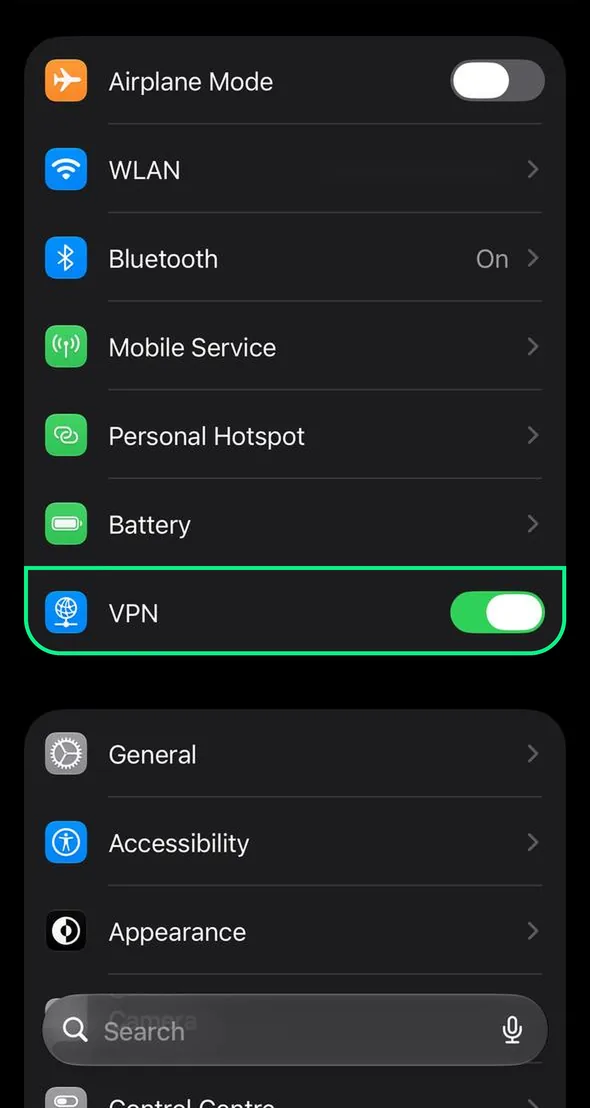
The quickest way to turn VPN off on iPhone is the VPN switch in Settings. It works for any VPN app or profile on the phone.
- Open Settings.
- Find VPN near the top, in the same group as Wi-Fi and Bluetooth. It appears once any VPN is set up on the phone.
- Switch the toggle next to VPN off.
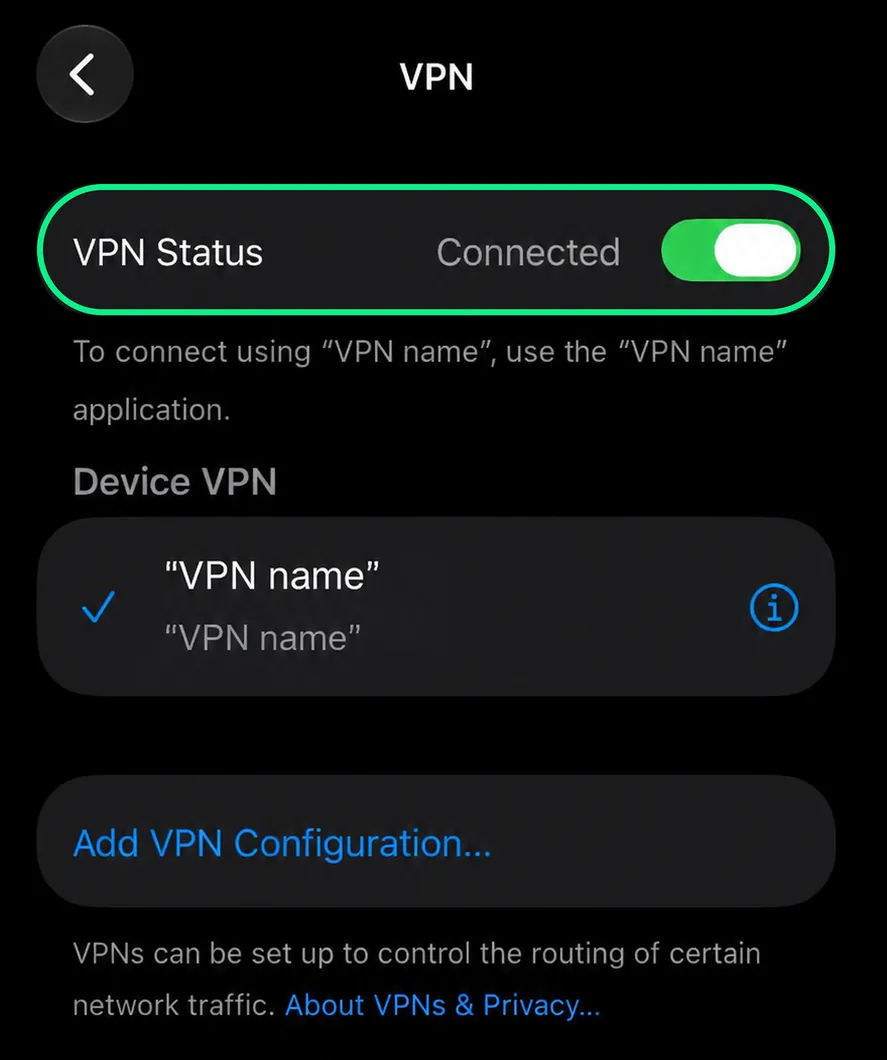
To see which VPN is running, tap the word VPN instead of the switch. The next screen shows a VPN Status toggle and the list of VPNs on the phone. The one with the checkmark is active. If an app manages it, a line under VPN Status names that app.
If you don't see VPN near the top, go to General, then VPN & Device Management, then VPN. Faster still, type "VPN" into the search field in Settings.
How to disconnect in the VPN app
Every VPN app has its own on and off button, usually labeled Disconnect or shown as a large power icon. Open the app, tap it and wait until the app says you're disconnected.
Turning the VPN off in the app is often more reliable than doing it in Settings. Many apps have their own auto-connect setting. If it's on, the app may reconnect a few seconds after you switch it off in Settings, which looks like the VPN refusing to turn off.
Which VPN is this? Find out what turned it on
Sometimes the VPN list shows a name you don't recognize. Before you disable VPN on iPhone, check what put it there. Apple doesn't run a VPN service of its own. Every VPN on the phone came from an app or a profile. The VPN list and the note under VPN Status, shown in the screenshot above, usually tell you which.
A VPN app you installed
This is the usual case. The VPN carries the app's name. The app controls it. Turn it off in the app or in Settings as shown above.
A filter, ad blocker or DNS app
Some apps that aren't VPN services still add a VPN entry to filter traffic on the phone. Ad blockers, security apps, parental control apps and DNS apps do this. Cloudflare's 1.1.1.1 app, for example, asks you to "install the VPN profile" during setup. You might have installed one of these months ago and forgotten. Turn off its protection inside the app. If you don't use it anymore, delete the app.
A work or school profile
If your employer or school manages the phone, the VPN may come from a configuration profile or device management (MDM). You'll see the profile in Settings, under General, then VPN & Device Management. Apple advises checking with the organization's admin before you delete anything, since removing a profile deletes its settings, apps and data. On a managed phone, the organization may also stop you from removing it at all.
iCloud Private Relay is not a VPN
Private Relay is an iCloud+ feature that hides your IP address, mostly in Safari. It isn't listed under VPN. Turning off a VPN won't touch it. To turn it off, open Settings, tap your name, then iCloud, then Private Relay. You can also turn it off for one network with Limit IP Address Tracking, as Apple's support page explains.
How to stop VPN from turning back on
If your iPhone VPN keeps turning on, something is set to reconnect it. Work through these in order and test after each one.
First, turn off Connect On Demand. In Settings, tap VPN, then the info button (i) next to the VPN's name. If you see Connect On Demand, switch it off. With it on, the iPhone reconnects the VPN by itself whenever it joins a network.
Next, check the app's own settings. Look for auto-connect, connect on startup, always-on or a kill switch. Turn them off. A kill switch doesn't reconnect the VPN. It can, however, block your internet while the VPN is off, which feels like the same problem.
Then restart the iPhone and check again. If the VPN still comes back, remove it completely, as shown in the next section.
iPhone VPN won't turn off? What to try last
As a last step, reset network settings. Go to Settings, then General, then Transfer or Reset iPhone, then Reset, then Reset Network Settings. This clears saved Wi-Fi networks and passwords along with VPN settings. However, Apple notes that VPN settings installed by a configuration profile or MDM stay. So if the VPN survives a reset, a profile or MDM is most likely behind it.
On a work or school phone, a VPN that can't be switched off is often set up as always-on on purpose. Apple calls this Always On VPN. It stays on until the configuration is removed. In that case, only the organization can turn it off.
How to remove VPN from iPhone completely
Knowing how to turn off VPN on iPhone only gets you halfway, because turning it off leaves it on the phone. To delete VPN on iPhone for good, remove the app first, then whatever it left behind.
- Press and hold the VPN app's icon, tap Remove App, then Delete App.
- Open Settings, then General, then VPN & Device Management, then VPN.
- If the VPN is still listed, tap the info button (i) next to it, then Delete VPN.
- Go back to VPN & Device Management. If you see a profile you don't need, tap it, then Delete Profile.
- Restart the iPhone.
Here's what each action does and whether the VPN can come back.
How to check that the VPN is off
Look at the top of the screen. When a VPN is connected, iOS shows a small VPN badge in the status bar. On iPhones with Face ID, the status bar has less room. Swipe down from the top-right corner to open Control Center and check there.
For a second check, open any "what is my IP" site in Safari. It should show your internet provider and your own area, not a VPN server. If you use Private Relay, Safari will still show a different IP, which is expected.
When to turn the VPN off and when to leave it on
Turning a VPN off for a few minutes is fine. Just do it for a reason, then turn it back on. These are the common good reasons:
- A banking or streaming app refuses to work while a VPN is on. Here’s why streaming apps block VPNs.
- AirPlay, a printer or another device on your home network doesn't show up.
- The sign-in page on hotel or airport Wi-Fi won't load until the VPN is off.
- You want to check whether the VPN is the cause of slow speeds.
Think twice before you turn it off on public Wi-Fi. Most sites already use HTTPS. Your passwords and page content stay encrypted either way. Without a VPN, though, the network can see which sites you visit. So can your internet provider at home. If you're not sure you need a VPN day to day, our guide on whether a VPN is worth it helps you decide.
Turning a VPN off for one app instead of all of them
Often you don't need to switch the whole VPN off. You only need one app to bypass it. That's what split tunneling does. It lets a banking app use your normal connection while everything else stays in the tunnel.
Atomic VPN's iOS app is coming soon. Right now, the Windows, macOS and Android apps include split tunneling and a kill switch. Atomic VPN costs $2 a month on the yearly plan, billed $24 once a year. Month to month, it's $5.99. Every plan has the same features.
If you use a Mac, Windows PC or Android phone too, you can set it up there today.