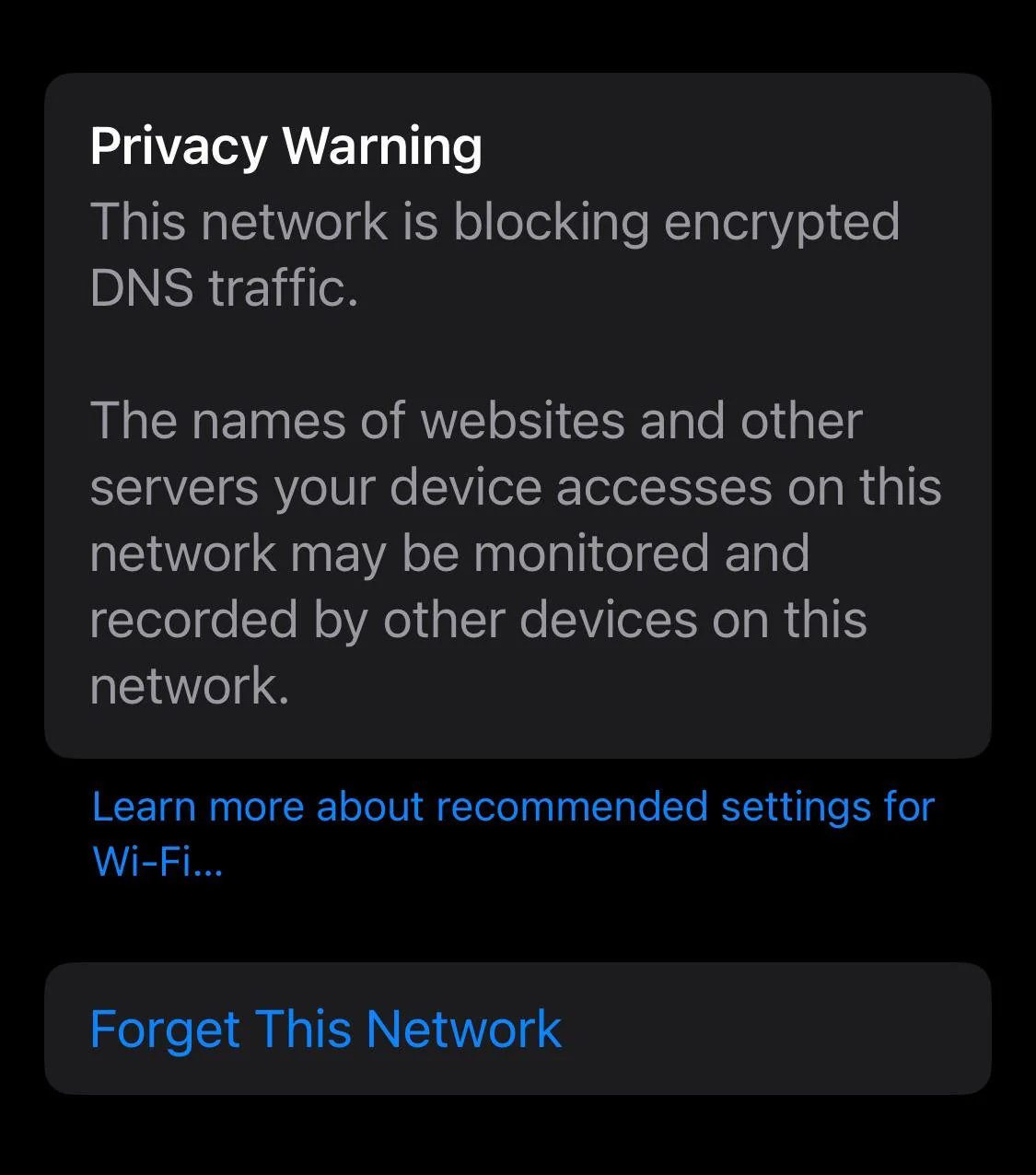
You open Wi-Fi settings on your iPhone and see an orange Privacy Warning under the network name: "This network is blocking encrypted DNS traffic." It goes on to say that the names of websites you visit may be monitored and recorded by other devices on the network.
It sounds like a hacking alert. It almost never is. It means one specific privacy feature isn't working on this network, and in most cases you can find the cause in a few minutes.
What the warning actually means
Every time your phone opens a website or an app talks to a server, it first asks a DNS server to translate a name like instagram.com into an IP address. That lookup is called a DNS query, and together those queries are your DNS traffic.
Traditional DNS is sent in plain text. Anyone who can see the network, such as the router, its owner or another device running monitoring tools, can read the list of names you look up. Even when the website itself uses HTTPS, the DNS lookup can reveal which site you went to.
Encrypted DNS fixes that. There are two main standards:
Apple added support for both in iOS 14 and macOS Big Sur in 2020. When your device is set up to use encrypted DNS (through a DNS profile, an app, a security product, or a resolver the network advertises) and that encrypted connection fails on a network, iOS falls back to regular DNS and shows the warning.
Apple describes the same situation in its guide to recommended settings for Wi-Fi routers and access points: the device keeps using the network's DNS server, but the names of the sites and servers it contacts are unencrypted.
So the warning tells you one thing: on this network, your DNS lookups are readable. It doesn't mean someone is reading them, and it doesn't mean your passwords or messages are exposed, since those are protected by HTTPS and app encryption.
What can other people see?
That's the same kind of information we describe in Can the Wi-Fi owner see what you search?. Encrypted DNS removes one of the easiest ways to collect it. When encrypted DNS is blocked, that way is open again.
Why the network blocks encrypted DNS
The warning shows up far more often on innocent networks than on malicious ones. The common causes:
- Parental controls and content filters. Filters from internet providers, parental control routers and apps work by reading and answering DNS queries. They can't filter what they can't read, so they block encrypted DNS on purpose. On a home network with parental controls, the warning is the filter doing its job.
- Network ad blockers. Pi-hole, AdGuard Home and similar tools block ads by intercepting DNS. Same mechanism, same warning.
- Captive portals. Hotel, airport, café and hospital Wi-Fi often intercept DNS to redirect you to a login page. The warning is expected on these networks.
- Work and school networks. Organizations monitor or filter DNS for security and policy reasons, and many block DoH and DoT outright.
- Security apps and VPN apps. Some antivirus apps, content blockers and VPNs redirect DNS to their own resolver, which can clash with another encrypted DNS setting on the same device.
- Old or misconfigured routers. Some older routers block port 853, mishandle DNS forwarding or run outdated firmware.
- iOS bugs. Several iOS updates have shown the warning briefly on networks that worked fine before. Apple Community threads document cases that cleared up after a reboot or an update.
How to fix "This network is blocking encrypted DNS traffic"
Work through these in order. Start with the first two, which fix most one-off cases.
1. Forget the network and reconnect
- Open Settings > Wi-Fi.
- Tap the ⓘ next to the network.
- Tap Forget This Network, then confirm.
- Rejoin the network and enter the password.
This clears the cached network profile. Many users report the warning disappears right away.
2. Restart your iPhone and the router
Turn the iPhone off and on. Unplug the router for 30 seconds, then plug it back in. If the router's DNS forwarding got stuck, a restart usually clears it.
3. Update iOS and the router firmware
On the iPhone: Settings > General > Software Update. For the router, check its admin page or app for a firmware update. Both sides have had bugs that caused this warning.
4. Check for filters and ad blockers on the network
If your internet provider's parental controls, a parental control router, Pi-hole or AdGuard Home is running, that's the cause. You have a choice to make:
- Keep the filter if you rely on it, especially with kids at home. The warning is the expected trade-off.
- Turn the filter off in your provider's account or the tool's settings if you don't need it.
- Configure encrypted DNS on your own device only. This protects that one device, but it also steps around the household filter, so do it on purpose, not by accident.
5. Look for DNS profiles and security apps on the iPhone
Go to Settings > General > VPN & Device Management. Look for DNS profiles or VPN configurations you don't use anymore, especially from old security or ad-blocking apps, and remove them. If you use a security app or VPN that has its own DNS feature, try pausing it to see if the warning changes.
While you're in Settings, check two more things:
- Configure DNS. In Settings > Wi-Fi, tap the ⓘ next to the network and scroll to Configure DNS. If it's set to Manual with servers you don't recognize, switch it back to Automatic.
- iCloud Private Relay. If you pay for iCloud+ and Private Relay is on, a network that blocks it can trigger privacy warnings too. In the same ⓘ screen, look for the Private Relay switch for this network. Turning it off for one network is fine at home; on public Wi-Fi, use a VPN instead.
6. Check the router's DNS settings
In the router's admin page (often 192.168.0.1 or 192.168.1.1), find the DNS or WAN settings.
- If the DNS servers are set to an old or unusual resolver, switch to a mainstream one such as your provider's default, or a public resolver that supports encryption.
- Make sure the router isn't set to intercept or redirect all DNS traffic, a feature some routers call "DNS hijacking", "DNS redirect" or "force DNS".
- Some users on TP-Link, Eero and other forums report the warning cleared after changing the Wi-Fi security mode from WPA3-only to WPA2/WPA3 mixed, or after updating firmware. It's worth a try if nothing else works.
- If your router or DNS filter has a blocklist, make sure it doesn't block mask.icloud.com and mask-h2.icloud.com, the hostnames Apple uses for iCloud Private Relay.
7. Reset network settings (last resort)
Settings > General > Transfer or Reset iPhone > Reset > Reset Network Settings. This wipes all saved Wi-Fi networks, VPN settings and custom DNS settings, so you'll need to rejoin networks afterward.
Should you fix it on public Wi-Fi?
No. On a hotel, airport or café network, you don't control the router, and the warning is a fair description of the situation: your DNS lookups are readable by whoever runs the network, and potentially by other devices on it.
The right move is to protect your traffic instead of trying to change the network:
- Use a VPN. A VPN sends all your traffic, including DNS, through an encrypted tunnel to the VPN server. The network sees one encrypted connection and nothing else. Because the DNS lookups travel inside the tunnel, it doesn't matter that the network blocks DoH or DoT.
- If the network also blocks VPNs, switch the VPN protocol to OpenVPN over TCP port 443, the same port HTTPS uses. It gets past most hotel and campus firewalls that block by port, though networks with deep packet inspection can still detect it. We explain the differences in WireGuard vs OpenVPN vs IKEv2.
- Avoid sensitive tasks like banking on an untrusted network without a VPN.
Private Relay vs. this warning
iCloud Private Relay, part of iCloud+, also encrypts DNS. According to Apple, it protects your web browsing in Safari, all DNS lookups from the device and unencrypted traffic from apps. Networks can block it too, but iOS shows a different message for that: "iCloud Private Relay is turned off for this network" or similar. If you see the encrypted DNS warning, Private Relay isn't necessarily involved.
Private Relay doesn't cover the rest of your app traffic, and it doesn't change your IP address for apps outside Safari. A VPN covers all traffic on the device.
How to check that your DNS is actually private
After you fix the warning, or once you're connected to a VPN, confirm it:
- Run a DNS leak test. The resolvers it lists should belong to your encrypted DNS provider or your VPN, not to the Wi-Fi network or your internet provider. Our guide on how to check your VPN for DNS leaks takes about two minutes.
- Check what sites can see. The Atomic VPN homepage shows your visible IP address, city and provider, and whether your DNS requests are exposed.
Atomic VPN: DNS inside the tunnel, on every network
- All DNS lookups go through the encrypted tunnel, so a network that blocks encrypted DNS still can't read them.
- IPv6 is blocked outside the tunnel by default, a common source of DNS leaks.
- OpenVPN over TCP 443 for restrictive hotel, campus and office networks that block other VPN traffic.
- No DNS query logs. RAM-only servers and an independently audited no-log policy.
- $2 a month on the yearly plan, 5 devices, 88+ countries.
Apps for Windows and macOS are available now, and Macs can show the same warning in Wi-Fi settings. iOS and Android apps are on the way. Until then, setting Atomic VPN up on your router protects every device on your home network, including iPhones. See how to set up a VPN on any device.
FAQ
What does "This network is blocking encrypted DNS traffic" mean?
Your iPhone tried to send DNS lookups encrypted, and the network blocked or intercepted them. The phone switched to plain DNS, so the names of sites you visit can be seen by whoever handles DNS on that network.
Is the encrypted DNS warning dangerous?
Not by itself. It's a notice that one privacy feature isn't available on this network, not a sign of a hack. On public Wi-Fi, treat it as a reminder to use a VPN.
Why does my home Wi-Fi say it's blocking encrypted DNS?
Usually because of parental controls from your internet provider, a Pi-hole or other ad blocker, a security app, or router settings. Forgetting and rejoining the network or restarting the router fixes most one-off cases.
What is DNS traffic?
DNS traffic is the stream of lookups your device makes to turn website and server names into IP addresses. Every site you open and many background app connections start with one.
What is encrypted DNS traffic?
Encrypted DNS traffic is DNS lookups sent through DNS over HTTPS (DoH) or DNS over TLS (DoT) instead of plain text. The network can see that your device is talking to a DNS server, but not which website names it asks about.
What is DNS traffic on Wi-Fi?
It's the DNS lookups your devices send through the Wi-Fi router. On most home networks the router forwards them to your internet provider in plain text, so the router owner and the provider can log which sites every device looks up.
What is DNS over HTTPS?
DNS over HTTPS (DoH) sends DNS lookups inside encrypted HTTPS connections on port 443, so the network can't read which names you look up. Most modern browsers and operating systems support it.
Should DNS over HTTPS be on or off?
On, in most cases. It keeps your DNS lookups private from the network. Turn it off only if it breaks a filter you rely on, such as parental controls, or if your workplace requires it.
Does a VPN fix the encrypted DNS warning?
A VPN makes the warning irrelevant: your DNS lookups travel inside the encrypted VPN tunnel, so the network can't read them even if it blocks DoH and DoT.
Does the warning mean someone can see my passwords?
No. Passwords, messages and page content are protected by HTTPS and app encryption. The warning only concerns the names of the servers you connect to.

.webp)
.png)